-
Tiny tunes app android
Tiny Tunes is a free music player and downloader app for Android devices. It allows you to search and download songs from the internet and create playlists to play your music. You can also stream music online and listen to radio stations. The app has a simple and easy-to-use interface, and it supports various audio formats such as MP3, WAV, and M4A. You can use Tiny Tunes to discover new music and artists, or to listen to your favorite songs on the go.
Where download tiny tunes app for android

You can download Tiny Tunes for Android from the Google Play Store. Here are the steps:
- Open the Google Play Store app on your Android device.
- In the search bar, type “Tiny Tunes” and press Enter.
- Select the app from the search results.
- Tap the “Install” button to begin the download process.
- Wait for the download and installation process to complete.
- Once the app is installed, you can launch it from the app drawer on your device.
- In your browser, download the TinyTunes .APK file here: TinyTunes 1.16.2 APK Download
Alternatively, you can also download the Tiny Tunes APK file from a third-party website and install it manually on your device. However, it’s important to be careful when downloading apps from external sources, as they may contain malware or other malicious software.
-
Xiaomi. Is it possible to use a Xiaomi smartphone instead of a fitness bracelet?

Xiaomi ecosystem of modern devices is designed in such a way that when buying a smartphone, you definitely need to purchase some other gadget in addition. For example, wireless headphones or smart watches. Healthy lifestyle lovers prefer fitness bracelets – a great addition to a smartphone to count calories, pulse or distance traveled. Owners of Xiaomi smartphones are doubly lucky – you can install the Mi Health application with a set of useful functions on your phone. But can a smartphone replace a fitness bracelet? Today we will figure out how Mi Health works in Xiaomi and what it can do.
What is Mi Health in Xiaomi?
Xiaomi Mi Health is a branded utility for tracking health indicators, which has now been renamed Mi Fitness: activity, sleep and women’s health. Some data is collected automatically, for example, others must be entered manually. Based on the indicators, the application issues health points – a kind of assessment of well-being. Mi Fitness and Mi Fit (now Zepp Life) should not be confused, although they have similar functions. Surprisingly, Mi Health can work without being tied to a fitness bracelet, allowing you not to spend money on additional gadgets. Or you can always import data from Zepp Life. Here are the features here.
- Activity: This item counts steps using the accelerometer, as well as walking time and calories burned. The information is stored in the application, so it can be viewed for any day from the moment of installation. There are charts for a period of time. The function works when the smartphone is at your fingertips.
- Sleep: the fitness bracelet fixes it on its own, but not always accurately. But there is information on the phases of sleep. In Mi Fitness, you will have to enter the time for going to bed and waking up on your own. The application will try to automatically calculate your sleep while the smartphone is still at night.
- Weight: This figure, along with height, is entered during initial setup and may be adjusted over time. The utility automatically calculates the body mass index to select the ideal weight for your height.
If desired, you can enter the percentage of fat, muscle mass and other indicators of body composition, but you can find out only with the help of smart scales, since neither a smartphone nor a fitness bracelet registers these data.
How to track your snoring on your smartphone?
Fitness bracelets and more or less modern smart watches have a cool feature – snoring detection. Jokes apart, but obstructive sleep apnea is a serious disease characterized by impaired breathing. Finding it is extremely difficult, especially if you live alone. Luckily, Xiaomi figured out how to do this with a smartphone and implemented snoring detection in Mi Fitness.
Finding this feature is extremely difficult: most likely, it is activated either when a fitness bracelet is connected, or after sleep, when the phone is nearby and records the sounds around. After that, it prompts you to activate snoring detection in the application settings, and in the morning it issues a report after waking up. This way you will know that something is wrong with your sleep and it is time to contact a specialist. Unfortunately, the smartphone will not be able to determine the sleep phases and time, so you will have to connect one of the accessories or enter the time yourself.
How best to count calories?
Fitness bracelet is the most accurate tool for daily calculation of calories burned. Of course, the indicators cannot be called 100 percent accurate, you always need to keep in mind that there is a certain error. But measuring calories burned with a smartphone is not an easy task. In Mi Fitness, you can turn on the training mode for running outdoors, having previously allowed access to the location, or on a treadmill – for this you will need to specify where to install the smartphone.
In both cases, the data will vary greatly, and calories will not be measured based on your heart rate and running intensity, but according to pre-built algorithms – just like on the treadmill screen. That is, you can turn it on and off, leaving it running, and calories will still be counted. The best thing to do is to compare them with the performance of a fitness bracelet: for this you need to add them up and divide them in two, after which you will get a more or less accurate result.
As we can see, you can go in for sports and monitor your health without a fitness bracelet, but the data will be very far from the truth, and some functions will not be available at all. In addition, wearing a sports accessory on your arm is much easier than constantly taking a smartphone with you for a walk. On the other hand, with the help of one smartphone it is really possible to record important data: weight, sleep time and the number of steps are available in Mi Fitness – usually this is enough to get in shape.
Thank you for your attention!
-
Google is preparing to make its search engine more convenient

Google. Notice how many innovations offered a few years ago? Recently, the number of fantastic projects has somehow diminished, and the company has directed its efforts to finalizing those products that it already has and that really make sense. First of all, it is a search engine, smart home and gadgets like Google Pixel smartphones and Chromebook computers. Despite this, for a long time the start page of Google search is the standard of minimalism. It just is, and tell the company thank you for it. Now it looks like she’s about to change. And it will really be a big deal if the company implements its plans.
Content :
- 1. Google update
- 2. Is it possible to add widgets to the Google home page
- 3. Does anyone need widgets
1. Google update
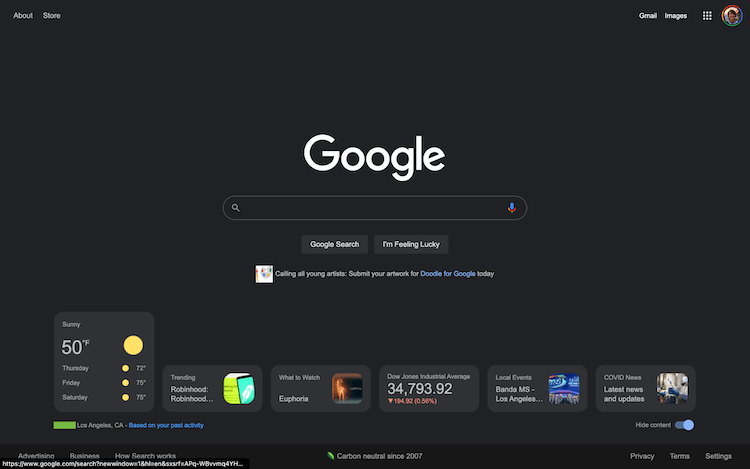
The other day there was information according to which Google seems to be promoting a new feature of displaying information on the main page of their search engine so that more users can test it. Some users notice the “Meet the new Google.com” prompt. If users are not signed in to an account, they will be prompted to do so. This is the only way they will be able to add widget cards and edit their placement on the homepage. 9to5Google explains that clicking on “Make this space yours” opens another window that allows you to customize the cards that appear at the bottom of the main search page.
Users first started noticing their own version of these widgets earlier this year. They were available when visiting the Google homepage or the search engine app on an Android phone. Widgets available back then included news, weather, Covid information, and more, which is apparently still the case.
2. Is it possible to add widgets to the Google home page.
During the initial test, the widgets at the bottom looked more like rectangles with rounded corners. This new phase of testing, which is slowly appearing, shows squares with rounded corners, although it seems that some early testers also saw cards of this shape. Experts suggest that using a square shape could be a way to add more of these information squares to your display.
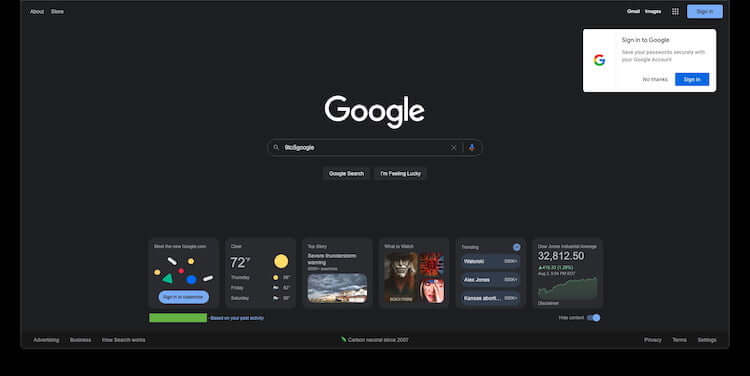
Reshaping and optimizing widgets is a very good idea. After all, when they first appeared in February, the number of information items displayed depended on the size of your display, which means that there were fewer widgets on smaller computer screens than on larger ones. That is, the home page of the search engine had a different level of convenience for different users.
Also, it seems that you can’t scroll through the widgets at the bottom of the home page, which means that you see what you originally selected and what fits on the screen. However, you can hover over each widget individually to expand it and get a better view of the information presented.
3. Does anyone need widgets.
While a feature like this is likely to be welcome among those who use Google.com on desktops, it’s not clear how extensive this new round of testing is. It is also not yet clear in which countries this will be implemented. Even the authors of many foreign publications who wrote about the new search engine start page widgets emphasized that the new function does not work for them yet.
Widgets themselves are quite convenient, but their use is not suitable for everyone. For example, if you use the address bar to search and never go to the main page of a search engine, then this method is not for you. You simply will not find yourself in a situation where you can read the information.
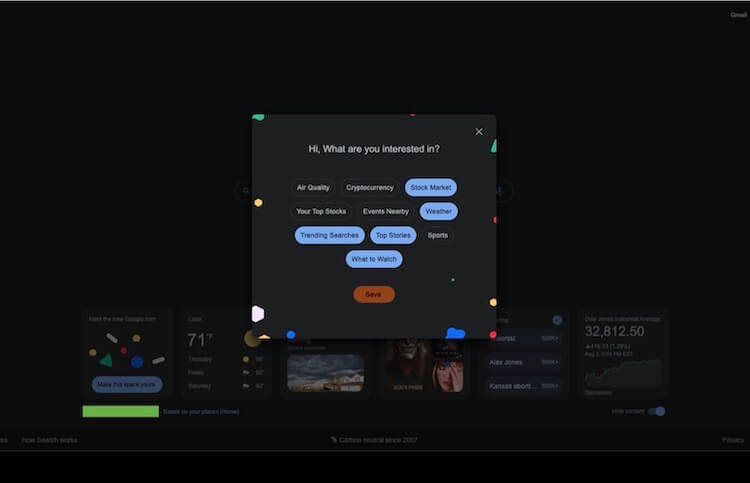
What do you choose and would you be interested in using widgets from Google?
Thank you for your attention!
-
Offline messengers and how they work

Offline messengers have appeared relatively recently, and each requires an Internet connection to use. You will be surprised, but this is not so: it turns out that in order to exchange messages with someone, the Internet is not needed, because you have other connection methods in your smartphone – Wi-Fi and Bluetooth. Yes, this is a rather strange and, it seems, a very specific way of communicating, but it exists and even works quite well. We tell you what offline messengers are, how they work and which one is better to download.
What is offline messenger
Despite the fact that LTE is probably already everywhere, many users find a rather exotic way to communicate by downloading offline instant messengers. This is not only interesting, but also economical – such applications help to save traffic and chat even where there is no network. It is based on Bluetooth and Wi-Fi technology, so participants can exchange messages without the Internet at a distance of up to 100 meters, and thanks to Mesh networks, this distance can be increased almost indefinitely.

The chip is very convenient: if in mobile communications smartphones are connected to the tower to receive a signal, then in this network each user is a signal repeater for other participants, so you can create a separate chain for data transmission without the Internet using a smartphone! At the same time, the number of users is not limited, and information is transferred from one device to another until it reaches the right user. The participants themselves will not notice anything – the data is transmitted at the expense of other smartphones connected to the network, so this approach is somewhat reminiscent of Apple’s AirTag. It is also important that the data is encrypted, so offline managers are quite safe.
By the way, if you think that offline messengers have appeared recently, then you are greatly mistaken: applications existed 15 years ago, when the mobile Internet was slow and not everyone could use it. All you had to do was download a Java application to your phone and add a Bluetooth interlocutor without registration. Unfortunately, then everything was limited only by the range of Bluetooth – there was no talk of any local networks of users.
Which offline messenger to download
As you can imagine, this is an extremely convenient way to communicate. For example, in the country, in the forest or on a hike in the mountains. So a group of people can always stay connected without the Internet and share important data. In any place where there is no network, an offline messenger is a real salvation: you can exchange not only text, but also photos, videos and other useful data. The only condition is that smartphones must be located in the visibility zone from each other, that is, about a hundred meters, but less is better, since they operate using the P2P system (peer-to-peer – from person to person).

Also, their trick is that even Wi-Fi Direct can be used as data transfer, with which we connect smartphones to the TV: you just need to go into the application and start searching for friends! At the moment, there are several popular offline messengers.
- Bridgefy is an app powered by Bluetooth Low Energy. To use, you need to give permission to determine the geolocation, and an Internet connection is only needed at the first start.
- Briar is a handy open source application. It can work over the Internet or via Wi-Fi or Bluetooth. At startup, you need to create a password that will be stored on your device. There are private messages, groups, a forum and even blogs.
- Airplane Messenger Lite is a free anonymous messenger that does not have profiles or other identification. You can chat with anyone nearby. In the paid version, messages are available only to trusted users and voice messages. Unfortunately, only for iOS.
- Bluetooth Chat is a simple application that sends text messages and images via Bluetooth. Internet is not needed even for registration, and to start communication, it is enough to choose a nickname.
- White Mouse Chat is perhaps the most secure application of all. It has automatic deletion of messages, forwarding is prohibited, screenshots, and registration is available without a phone.
In general, if you are not confused by the availability of the local network, be sure to try the offline messenger – it is not only convenient, but also quite safe!
Thank you for your attention!
-
WhatsApp may get a premium subscription, but it won’t be for everyone

WhatsApp users who were with it in the early years of its existence remember how at one time it was paid, and in order for it to work, those who downloaded it had to fork out, albeit a little. Then it was bought by Mark Zuckerberg’s company. Since then, you have not had to pay to use the messenger, but the mentioned company wants to make money and wants to do it even on WhatsApp. That is why its version with the prefix Premium is available in the beta version of the application. And there are more and more confirmations of rumors that the company is preparing to introduce a subscription service for business users. It’s not that bad, but let’s talk about it anyway and see if it’s worth worrying about WhatsApp going paid.
Content :
- 1. Whatsapp premium subscription
- 2. What will a paid WhatsApp subscription give?
- 3. Will the paid subscription be available to everyone
- 4. Will Telegram become more popular than WhatsApp?
1. Whatsapp premium subscription.
WhatsApp is preparing to introduce a Premium plan for business users. The instant messaging service provided by Meta is not considered a very effective tool. Companies know that the platform, like other services of the IT giant, is one of the primary targets of hackers. You can immediately find a huge number of problems that most professionals face. Fortunately, large companies understand that cybersecurity is essential to survive in today’s world, but not everyone manages to do something that will actually offer a high level of protection.

These problems do not stop WhatsApp from boldly trying to succeed with its messenger. Monthly subscription will soon become the official platform. Members of the WhatsApp beta program can now access the new WhatsApp Premium menu on their smartphones. Once in the app settings, they will have the option to create their own contact links using the app
2. What will a paid WhatsApp subscription give?
You can still change this link every three months. Even if you want other users to remember your address, after the change, the previous link will again become available to other users. Likewise, WhatsApp Premium allows you to share an account across up to 10 devices. This feature is even more interesting for corporate users. As a result, users will have a single account for their company and will be able to work together more efficiently.
3. Will the paid subscription be available to everyone
Thus, ordinary people, who make up the majority of the users of the application, will not be able to subscribe to such a service. On the other hand, there is a wide range of paid and free apps available to professionals. And WhatsApp will have a hard time succeeding. It is possible, of course, that the ability to conduct video calls with 32 participants will tip the scales in his favor, but there is no guarantee of this. There is currently no information on a launch date or pricing for WhatsApp Premium. It is only available through beta testing on iOS and in the beta app for Android. These features may vary by market.

4. Will Telegram become more popular than WhatsApp?
WhatsApp itself, although it is the most popular instant messenger in the world, still cannot be considered the best. It is simple and understandable, but the same Telegram has recently added a lot and is growing literally every day. Especially after WhatsApp makes some miscalculations. We have encountered this more than once. Either some kind of leak, or a global failure, or even the introduction of failed functions. At the same time, there is always a lag behind Telegram in terms of functionality. All this can lead to the fact that the title of the most popular messenger can go to another. However, it is too early to talk about this, and WhatsApp still has a chance to maintain its leadership.
Thank you for your attention!
-
WhatsApp will allow you to send messages to yourself. Why is it needed

Smartphones have replaced a lot of things for us, and now we rely on them for almost everything. In particular, it is in them that we make notes so as not to forget that we need to go somewhere or do something. Android users have many handy options when it comes to taking notes and saving links for later visits in WhatsApp. You can choose individual applications that are created specifically for this, or just throw everything into the “Favorites” chat in Telegram. But we’re used to constantly getting something new, aren’t we? And now the time has come again. But now, as they say, it has crept up from where they did not expect it.
Content :
- 1. Whatsapp new features.
- 2. Sending messages to yourself.
- 3. Can you send messages to yourself on WhatsApp?
- 4. Most popular messenger.
1. Whatsapp new features.
WhatsApp developers seem interested in catching up a bit and are now testing new features for their messenger. They allow you to send messages to yourself. And what it is for and how you will use it is up to you. For now, let’s take a closer look at this.
2. Sending messages to yourself.
Sending messages to yourself can seem a bit silly if you’re not used to doing it and don’t really understand what it’s for. But this process has its advantages – instead of installing a special application for notes or using standard tools, you can simply send links and notes to yourself by message. This method is convenient because you do not need to copy anything, but you can simply click “share” and send the desired text / link. It is even more convenient to save messages from friends or colleagues in this way so as not to forget about them.
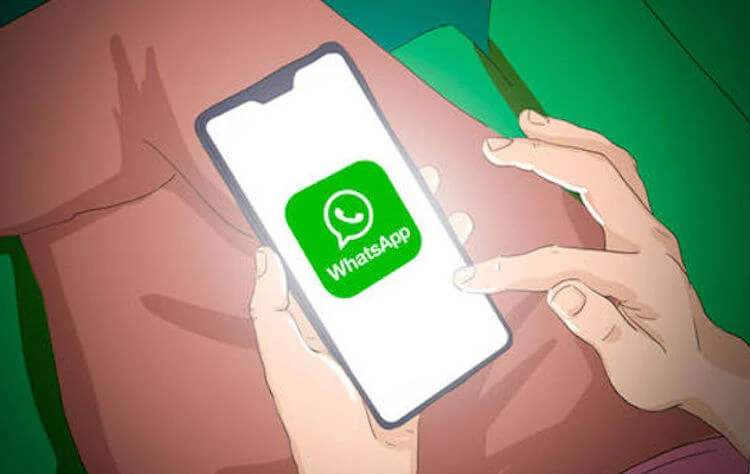
Since multi-device support is already available, you can even use chats with yourself to transfer small files between devices. This is more convenient than transferring them through a file hosting service, in which you need to log in and upload files separately. In general, there are fewer actions, and this is always convenient.
3. Can you send messages to yourself on WhatsApp?
With the new beta version 2.22.24.2 of the Android app, select WhatsApp beta testers get special access. They will be able to test a feature that allows them to send messages to themselves. It is still difficult to say how this will be implemented in the future, because at this stage it is only testing, but it can already be understood that WhatsApp has the most serious attitude towards this function.
As for how the feature works, it’s not completely clear either, and it will appear in later versions. In the meantime, we can only assume what exactly we will get in the final version. When you tap the floating action button in the bottom right corner of the screen, you are prompted to send a message to a new contact, a new group, or a new community. Under these options, you see a list of all your contacts who also use WhatsApp. The new option to send a message to yourself may probably appear in your contact list in a future update.

However, it is already possible to send a message to yourself on WhatsApp using a Click to Message link or using a WhatsApp group in which you are the only member. However, these methods are entirely in the realm of workarounds, and not in the main ways. It would be nice to see the option directly in the send menu. Until then, users who can already send messages to themselves can pin that chat with themselves to their chat list.
So it can be easily accessed from all applications that support the ability to send messages through this messenger.
4. Most popular messenger.
Recently, WhatsApp developers have begun to work much more actively on updates and adding new features. Against the backdrop of how Telegram is rapidly gaining an audience, the “green messenger” has no choice. The most interesting thing is that all the features that we talk about as new have been part of Telegram for a long time. Including the function of sending messages to yourself. It has not only existed for a long time, but is also actively used by those who have chosen this messenger for themselves.

This is very convenient, and therefore it is interesting to see how WhatsApp will rise to the challenge and be able to implement this feature. One thing is clear – when you have almost two billion users, it is difficult to change something so as not to break everything and everyone. This is partly why this messenger is so clumsy.
Thank you for your attention!
-
How to weigh an item using your phone.

Smartphones are constantly coming up with new uses: not so long ago we told you about how to turn your phone into a speaker for your computer. It turns out that’s not all: a smartphone can be turned into a scale! This is not just a stupid request to Google, but a working method: it may seem that this is another hype application, but if so, then its developers did a good job by releasing really useful software that turns a smartphone into a scale, but also gives a fairly accurate result . In this article, we will talk about how to make scales from a smartphone and how accurate the results are.
How to weigh using your phone
In 2022, software makers are making apps for every taste. For example, take the same Akinator: a wonderful application guesses the word that you have guessed. At first it seemed that the program was just eavesdropping on you, but then it turns out that even in complete silence it guesses the name of an object or person.
The thing is that the algorithm builds a “question-answer” system, gradually collecting answers from other users. Not without errors, of course, but still in 7 out of 10 cases, Akinator guesses the correct answer by asking fairly general questions.
It is much more difficult for a smartphone to measure some exact data: for example, the height of an object by scanning it with a camera.
There are inaccuracies and the phone must be held as evenly as possible in order to get a result close to the truth. Approximately the same scales work on a smartphone: when measuring, a gyroscope is used, which determines the orientation of the device in space and performs some function. For example, it changes the screen layout or cancels text input by shaking.

But one application is not enough:
You need to create the right conditions. The smartphone must be placed on an elastic object, which will be a counterweight – a kind of spring. For this, two sheets of paper folded in several layers are suitable for us. And we also need an object whose weight we know.
- Lay the sheets on top of each other.
- Fold them in half horizontally.
- Then again in half vertically.

- Then we fold the resulting sheet horizontally into an accordion into three equal parts, slightly bending them.
- Downloading Weight Scale Estimator: The app is no longer on Google Play, so you’ll have to take the risk by downloading from a third party source .
- After installing the application in the Measurement Unit, select kilograms.

- Then we go to the Calibration weight item to do the calibration: we set the weight to 0.5 kg. The app asks you to do this twice.

- To prevent the object from slipping, you can put paper under it. Never touch the smartphone screen.

- After “Success” appears on the screen, you can weigh different items.
Of course, the weight is displayed inaccurately: sometimes the indicators vary from 3 grams to 5-10, but with an increase in the mass of the object, the error increases. Naturally, you can’t really weigh anything with this method, since it’s not very convenient, there is no application on Google Play, and paper has yet to be found: I personally had to dig to find a couple of A4 sheets in the house.
In addition, it is simply not recommended to weigh a load of more than 500 g on the smartphone screen, so the method is suitable for the most extreme cases: for example, in order not to overdo it with seasonings in the soup.
Thank you for your attention!
-
How to cut video on phone. Free apps without watermark

When preparing a text with a story about how to make a ringtone for a call, I caught myself thinking that in addition to music, we sometimes need to cut the video on the phone. For example, to save space on the internal drive, or simply to save extremely important fragments taken with a smartphone camera. Cropping involves not only changing the duration, but also cropping the video. And today we will figure out how to properly crop a video, and what is needed for this.
Content :
- 1. How to crop video in gallery
- 2. Google Photos – Lossless Crop Video
- 3. YouCut – video editor in English
- 4. Video Crop & Trim – quickly trim video
1. How to crop video in gallery
You can trim home videos without the help of special programs, simply by referring to the standard Gallery application. On smartphones from some manufacturers, the utility has a wide range of functions, including a full-fledged editor. In particular, this applies to the Xiaomi gallery.
- 1. Launch gallery.
- 2. Open the desired video.
- 3. Click the edit button.
- 4. Use the sliders to select the desired segment.
- 5. Go to the Aspect Ratio tab to crop.
- 6. Select the quality of the video (original is selected by default) and click the “Save” button.
Next, rendering will begin, after which the video will be saved as a copy of the original video. I note that cropping in the built-in Xiaomi editor is carried out only with the help of templates. That is, you will not be able to select the area of the frame yourself. If you are not satisfied with this state of affairs, or there is no editor in the gallery, take a look at other ways to trim video on Android.
2. Google Photos – Lossless Crop Video
The Google Photos app is installed by default on most Android smartphones. If you don’t have it, download the program from the link. After comparing several video editors for Android, I can say with confidence that in terms of quick video cropping, Google Photos has no competitors. Firstly, the application does not spoil the quality of the video. Secondly, there are no watermarks on the output. Thirdly, Google Photos offers not only cropping, but also manually cropping videos on your phone.
With the video open, click the “Edit” button to get to the editor. By default, a window will appear on the screen where you can trim the video without losing quality using the sliders. And in the next tab you will find advanced cropping tools, including even changing the angle.
3. YouCut – video editor in English.
The following application is a complete video editor for Android. And, although the program was developed by the controversial InShot studio, there are no watermarks inside YouCut, which made me include the utility in the list. After launching the YouCut application, it immediately prompts you to select a video. Next, you need to click the “Crop” button, select the desired segment and confirm saving.
YouCut also offers to adjust the video quality, but if you artificially increase the resolution or frame rate, nothing will change dramatically. Better pay attention to the fact that cropping in the application is carried out through the “Cut” tab, which is not immediately evident. In general, YouCut is a very cool video processing application without serious drawbacks. You can only find fault with the presence of advertising.
4. Video Crop & Trim – quickly trim video
In addition to YouCut, I went through several other popular video editors for Android, but all of them were either with a huge amount of built-in ads or gave out a video with a watermark. The exception to the rule was the Video Crop & Trim program. There are no significant shortcomings, as well as additional functions. This is probably the easiest app to trim or crop a large video.
After selecting a file, you will immediately be taken to the editor. Note that Video Crop & Trim automatically crops the video. Therefore, if you do not want to lose the quality of the video, you will have to manually stretch the selected area. Well, or, on the contrary, select only the desired piece of the frame. The lower slider also allows you to adjust the rendering speed by using less or more CPU resources. But, if the Video Crop & Trim application suddenly seems ideal to you, I hasten to upset: the translation here is crooked.
Thank you for your attention!
-
How to fall asleep quickly. 3 best apps for insomnia

How to fall asleep quickly?
Probably, each of you knows that the smartphone is the main enemy of healthy sleep. Sticking to Tik Tok in the evening or reading the news on Telegram, a person is at great risk of not getting enough sleep and ruining the next working day. But the situation can be reversed by simply installing a best apps for insomnia. And, although such utilities seem monotonous and useless to someone, I found 5 truly unique programs, each of which in its own way approaches the process of your timely going to bed.
Content :
- 1. Loóna – meditation for sleep.
- 2. Sleepa – sounds for sleep.
- 3. Sleep Sounds – soothing music for sleep.
1. Loóna – meditation for sleep.
A sensational sleep app that launched in 2019 and made a name for itself a year later by winning Google Play’s Best of 2020 Awards. This should be reason enough for you to download Loóna, but I’ll tell you a little more about the program.
On first launch, the app asks a few questions, trying to figure out why the person can’t sleep. After filling out a short questionnaire, the user selects one of the proposed slipscapes – interactive stories that help to go to bed earlier. While listening to the narrator, you can hold your smartphone in front of you, so that you can then complete a small task (for example, color a picture). If you still can’t fall asleep, turn on soothing music, which is also available in the Loóna app.
Despite the fact that the program looks cool and is liked by millions of Android smartphone owners, I was tired of intrusive offers to get premium access. A dialog box asking you to pay $29.99 for 12 weeks or $44.99 for 12 months pops up after almost every action. Of course, you can unsubscribe from the subscription. But then access to most slipscapes will be closed, and advertising will become one of the obstacles to sleep.
2. Sleepo – sounds for sleep.
This program is a completely different kind, which is an application with sounds for sleep. Moreover, unlike most other similar utilities, Sleepo offers the user to set the background music for sleep by combining various effects from a fire to sea waves.
The resulting mixes can be saved to listen to them in the future. Ads in the application are not intrusive and do not interfere with going to bed. But there are still in-app purchases. Sleepa offers a subscription for $4.99/month or $24.99/year to unlock all available sounds.
3. Sleep Sounds – soothing music for sleep.
The next application also allows you to listen to sleep music. The difference from the previous program is a more pleasant design, as well as the presence of ready-made mixes, which by default run for 20 minutes. If you wish, you can always change the sleep timer and the content of the background music by adding new effects.
There are very few intrusive offers to subscribe for $14.99 per month or $5.99 per year. But there are ads. It is displayed as a small banner at the bottom of the screen and periodically appears when switching between menu items. It only makes sense to subscribe to premium access if you want to unlock more sleep sounds.
Special applications are not the only way to fall asleep if you can’t sleep. You can check out other tips on how to fall asleep using your phone. Believe me, many ways will surprise you and, perhaps, help you defeat insomnia once and for all.
Thank you for your attention!
-
Cheat geolocation on Android

How to changing your location can be useful in different situations? For example, if you want to share it with someone, but do not want to tell where you really are. In addition, a fake location is sometimes needed for AR games like Pokemon Go to collect rare characters that are not nearby. Whatever the reason, location spoofing will always come in handy. Want to know the best way to do it? Just follow our guide on how to cheat geolocation on Android 13.
To change the location on Android 13, a cool application was released not so long ago – iMyFone AnyTo Location Changer, which was previously only available on iOS. If you are looking for an option to fake GPS, then iMyFone AnyTo is what you need.
How to Fake Geolocation on Android:
Creating a fake location with iMyFone AnyTo is very easy. If you need to simply fool the GPS, then the Teleport mode in the application will suit you. Everything is very simple:
- 1. Launch the iMyFone AnyTo app and click “Locate My Location” in the bottom right corner.
- 2. Use the Teleport mode: in the application, press and hold the place on the map that you want to select.
- 3. On the map, you just need to select the desired place and confirm the choice.
- 4/A “Change your location” popup will appear at the bottom of the screen: select “Move” to move to the destination.
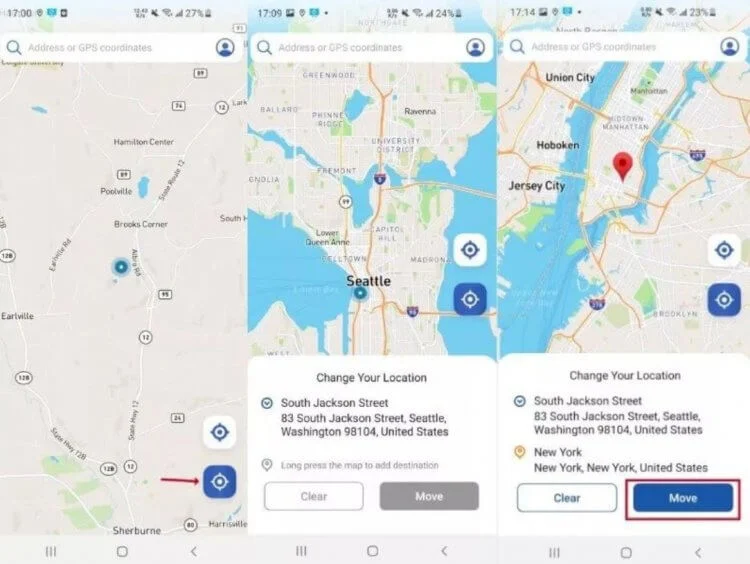
A “Change your location” popup will appear at the bottom of the screen: select “Move” to move to the destination.
Fake geolocation on Android 13 without Root
The application has several useful features that allow you to spoof the GPS in different ways. There is also the easiest way to select a random point on the map, other methods allow you to create complex routes and even move around neighboring cities in AR mode. No one will notice the deception – see how it works.
The application has several modes of operation
- Teleport mode. This is the main mode for fake geolocation on android smartphone. The function allows you to create a fake location by switching it to the selected point.
- Route construction mode. A function that can be used when you want to build a route from point A to point B. With this option, you can select the start of the path and the end point, and the application simulates your movement from one place to another.
- Route with multiple stops. Unlike the previous mode, this one allows you to create a complex route so that it goes through several points.
- Joystick mode. Another iMyFone AnyTo feature that allows you to move freely around the area. Select a point on the map and use the joystick on the screen to move in any direction. Convenient for Pokemon Go when there is no character in your city, but it can be found in another location by fooling the GPS.
- Circle movement. This mode allows you to loop the movement between two points when the start and end are nearby. The program asks you if you want to build a circular route: if so, the application combines them, as if you left the same point and returned to it.
And this is not all that the application can do. The developers have written detailed instructions on how to use the utility on different iMyFone AnyTo platforms – be sure to read it!
Thank you for your attention!
-
Neural network. How to improve the quality of a photo through. TOP 3 apps for Android

Remember how smartphones were photographed 10 years ago? Not only were the pictures taken in low resolution, but they were incredibly soapy. Over time, the situation has changed, and now mobile cameras have reached a new level, but at the same time there is a need to improve the quality of old photos. This can be done using special applications that work on the principle of a neural network. They remove noise in photographs, eliminate soapy areas, and also increase resolution. See how apps can improve picture quality.
Content :
- 1. Remini – photo enhancement through a neural network
- 2. PhotoAI – Photo Enhancer App
- 3. Bigjpg – increase photo resolution
1. Remini – photo enhancement through a neural network.
This is one of the most popular neural networks for photography. The Remini app has been downloaded over 100 million times on Google Play alone, so now is the time to take advantage of it. The program is a comprehensive tool for improving selfies. One of the prerequisites is the face in the photo. She does well with landscapes.When you first start Remini offers a paid subscription for $4.99 a week. But, firstly, even without premium access, the application does an excellent job. Select a photo in poor quality and click the “Improve” button. Although the free version of Remini requires you to watch an ad to see the final result, it does not currently play, so the process of enhancing the image is seamless and fast.
You can compare before and after results, and download photos without a watermark. I did not notice any restrictions on the number of uploaded images, but I can highlight the overly aggressive work of the neural network. It changes the image beyond recognition, including some kind of cartoon effect. But they save the built-in filters that help make the picture more realistic.
2. PhotoAI – Photo Enhancer App
When talking about how to improve the quality of photos on your phone, you can not ignore the PhotoAI application. Unlike Remini, it offers several scenarios for the operation of a neural network at once:
- Increase in photo resolution.
- Face change.
- Blur removal.
- Coloring black and white photographs.
- Noise removal.
- Comprehensive photo enhancement.
You can easily find the script you need. PhotoAI lets you evaluate your work with before and after examples that speak for themselves. Without a paid subscription, you can improve 5 photos. Premium access costs $6.99 per month and $24.99 per year. Evaluate the quality of the neural network and decide whether it is worth paying money for it.
3. Bigjpg – increase photo resolution
Another neural network for improving photos taken in a variety of scenarios, but without such a colorful interface as in Remini or PhotoAI. Fortunately, the Bigjpg app is almost free of paid features and any ads.
The program offers to select a file, set the degree of scaling (enlargement) and adjust the strength of the AI work to eliminate noise in the photo. The higher the values set, the longer Bigjpg will process the image and the more the resulting image will differ from the original image.
You can improve the photo with a neural network 20 times for free. You can choose from several tariff plans for $6, $12 and $22, respectively. Each of them has its own restrictions on the size of the uploaded image and on the number of processed images. The subscription can be paid through AliPay or in other ways.
The effect of this application is not too pronounced, but the photo does not turn into a cartoon picture
Thank you for your attention!

 Tinytunes.app