-
Tiny tunes app android
Tiny Tunes is a free music player and downloader app for Android devices. It allows you to search and download songs from the internet and create playlists to play your music. You can also stream music online and listen to radio stations. The app has a simple and easy-to-use interface, and it supports various audio formats such as MP3, WAV, and M4A. You can use Tiny Tunes to discover new music and artists, or to listen to your favorite songs on the go.
Where download tiny tunes app for android

You can download Tiny Tunes for Android from the Google Play Store. Here are the steps:
- Open the Google Play Store app on your Android device.
- In the search bar, type “Tiny Tunes” and press Enter.
- Select the app from the search results.
- Tap the “Install” button to begin the download process.
- Wait for the download and installation process to complete.
- Once the app is installed, you can launch it from the app drawer on your device.
- In your browser, download the TinyTunes .APK file here: TinyTunes 1.16.2 APK Download
Alternatively, you can also download the Tiny Tunes APK file from a third-party website and install it manually on your device. However, it’s important to be careful when downloading apps from external sources, as they may contain malware or other malicious software.
-
The best torrent clients for Android

The huge database of torrent sites has almost all the necessary files. While torrenting may be perceived as a hub for pirated content, there are many legal uses for this technology and even many legal websites for downloading torrent files. Including for downloading various content on Android. So, it’s time to consider the most interesting torrent clients for the Green Robot.
Content
- Flud – Loading without limits
- uTorrent – Most popular client
- BitTorrent – Just as good as the competition
- zetaTorrent – Two in one
- TorrDroid – Convenient Search
Flud – Loading without limits
Flud is a free and fully featured torrent client for Android. It comes with a simple and clear user interface and does not impose any specific download speed limits. You can also even move files from one folder to another, or from your smartphone’s internal storage to an SD card while downloading. It also supports changing themes, including a dark theme. The program also has an encryption function, support for filtering IP addresses and working with a proxy.
Download: Flud
uTorrent – Most popular client

uTorrent is arguably one of the best torrent apps for Android with over 100 million downloads. You can download several files at the same time and even play them after downloading right in the program interface, which is quite convenient. In addition, this application shows in detail all about the speed, supports RSS signatures and has a WiFi-Only mode. Oh yes, the program is absolutely free, but contains ads.
Download: uTorrent
BitTorrent – Just as good as the competition
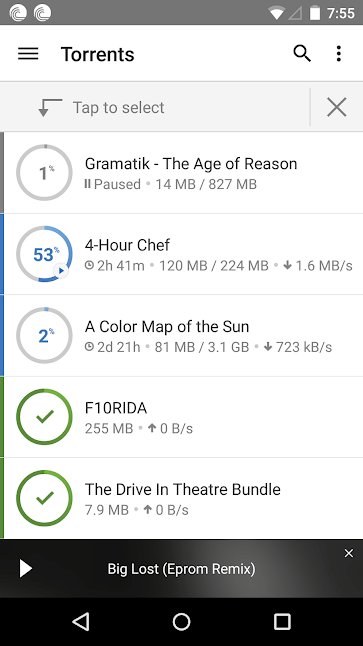
BitTorrent is perhaps the second most popular Torrent client on both desktop and Android. However, he is not inferior to the leader in any way. The app is almost identical to the uTorrent app and has no download size limit. But there are also differences. For example, BitTorrent comes with a built-in music and video library from which you can access your phone’s media, and all downloaded songs and videos are automatically categorized.
Download: BitTorrent
zetaTorrent – Two in one
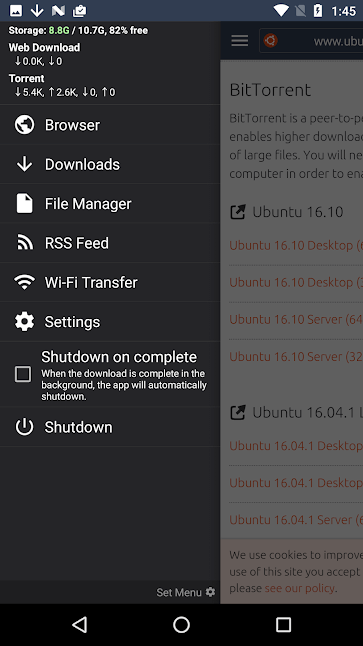
zetaTorrent is a fully functional and somewhat unique torrent client for Android. In addition to the main function, there is a browser that has an ad blocker. At the same time, the browser is able to automatically recognize torrent files and links to them, immediately starting the download right in the Internet browser window. Well, work in the torrent client mode is present here. And there is also a rather convenient file manager and the ability to protect the application with a password. Did you know that you can use a torrent client on Android? We regularly report something interesting and new from the world of this operating system and beyond.
Download: zetaTorrent
TorrDroid – Convenient Search

TorrDroid has a built-in algorithm for finding and downloading files. The main page is divided into three sections: History, search and download. You can enter a search query and file type to start searching for a torrent on a number of sites, some of which are built into the program, and the rest you can add yourself. TorrDroid also has a built-in file manager and the ability to hide downloaded files.
Download: TorrDroid
-
Five applications for those who type and work with texts a lot

Five applications for those who type and work with texts a lot. There are people for whom working with texts ceases to be just something necessary and routine, like writing a memo at work, and becomes a real hobby to which they devote their free time. For some, text is work. Moreover, now you can earn good money on this. Whatever the sequence of letters on the screen or on paper is for you, the creators of the applications are trying to make the two of you something useful and convenient. Today we will talk about applications that will help in any work with text – from preparing a business letter to writing an entire book.
There is an opinion that writing with the wrong tools is like putting on jeans to run a marathon. It seems possible, but somehow it’s not. They simply do not provide the opportunities and comfort that are needed at this moment.
There are tons of recording apps and tools in the Play Store – so many that by the time you find the apps you want, you won’t need to write anything. To make it easier to make a choice, below I will give several applications that will help not only write text without errors, but also do it in different languages. And if you need it, there are even apps to write an entire book.
Content
- JotterPad is an app for writers and screenwriters
- Pure Writer is an app for those who love to write
- WriterTools – a tool for working with text
- MS Word for Android – a proven classic
- Google translator – the easiest translation
JotterPad is an app for writers and screenwriters
JotterPad is a complete word processor disguised as a text editor. The interface of the application is minimalistic – very pleasant and understandable. Regardless of how you type, from an external or built-in keyboard, all functions will be available to you.
These features include support for dictionaries, enhanced character support, and bug fixes. When you first launch the application, you will be prompted to select the language for further work. There is also cloud integration with services such as Google Drive, Dropbox and OneDrive, as well as offline editing.
JotterPad offers in-app purchases. There is a “creative” version of the app that costs $1.99 and unlocks features like formatting, custom fonts, a dark theme, and version control. And if you work with scripts, then for $ 30 a year you can unlock additional opportunities in this direction.
Pure Writer is an app for those who love to write
PureWriter is another minimalist-focused word processor, although it’s marketed as a security-focused app. Your work is periodically saved to the cloud, and the app will alert you if it fails for any reason.
At first it seems that there are too many sections in the application, but you understand them quickly enough and find something that will be useful. For example, I really liked the ability to break the text into paragraphs. This is when you just write, and the paragraphs are separated from each other by small indents. This makes it much easier to work with large texts.
PureWriter also offers many useful features for free, including version control, background themes, and support for fingerprint encryption. You can unlock the Pro version for $10 to get access to features like custom fonts, instant preview, and various export options. Despite the fact that I work with texts, when I used the application, the free version was enough for me.
WriterTools – a tool for working with text
For many who are not used to working with letters, this process seems intimidating, but modern technology helps to cope with it. WriterTools is an automatic project manager with features like timeline and character highlighting.
It should be noted that this application has not received updates for a long time, but at the same time it continues to work, and there is no feeling that the developers just “scored” it. Apparently, they are satisfied with everything, and so far there simply have not been so many edits to risk spoiling something.
However, if you want the full functionality, including cloud backup, dark theme, and advanced sync tools, you’ll pay $4.99 per month.
MS Word for Android – a proven classic
If you don’t want to experiment and try something new for work, especially since the applications above are aimed specifically at writers, just Word, which many are so used to, is perfect for you.
You can download it without any problems from Google Play , and use it partially for free. However, if you have an Office 365 account, you can log in and everything becomes quite simple.
Not everyone knows that Word is for Android, but sometimes it helps a lot. In particular, it can be used to work with documents that were started on the computer. And you can just check the grammar and typos in the text. For example, before writing a large email, a comment on a social network, or a message in a messenger.
Google translator – the easiest translation
A conversation about working with text would not be complete without mentioning the translator. Even people who understand a foreign language sometimes just need to translate a large text so as not to waste time reading it. Or simply do not reprint, for example, a letter from foreign colleagues.
The simplest and most understandable translator can be called the variant from Google. It is simple, without unnecessary functions, but at the same time it even has voice translation and photo translation.
In general, the texts are quite high quality. There are other translators of no less good quality, but the application from Google is completely free and this is its main advantage.
-
The best repair and construction apps for Android

The best repair and construction apps for Android. Judging by the queues in the stores of building materials, home improvement goods and at home, plus or minus everyone faces such work. Application developers also understand this and are preparing applications for smartphone users that will perfectly help with this. Some are a guide and a collection of tips, others are ready to offer tools, such as a level and a tape measure, and still others simply allow you to mentally prepare for such a difficult task as repair. Whether you’re just getting started or just looking to do something with your home, the apps on this list are great for you.
Content
- Bosch Toolbox – for work and home
- Bosch Toolbox – the same Bosch
- Toolbox is such a tool
- DIY 4 Beginners – all over again
- Room Planner – convenient home layout
Bosch Toolbox – for work and home
There is a saying: “My home is my castle.” To ensure that we feel absolutely comfortable in our home, we make every possible effort in terms of renovation and design to ensure that we are comfortable in this fortress for many years to come. Applications that help in this are usually called “Do It Yourself” or in the English version DIY (Do It Yourself). Here are some great apps from this category.
Bosch Toolbox – the same Bosch
In Bosch Toolbox you will find some really useful features. For example, you can access the measurement camera function. Take a picture, and then apply all the features of the room to it. For example, wiring, connections, ventilation, amplifiers and more.
Notes can be made by hand, voice or video for future reference. The professional wizard can also be used by Bosch Toolbox to enhance his daily work by generating progress reports that can later be exported to PDF and TXT formats. This makes it much easier to send the results of your work to the customer.
To use the measuring camera function, you need to give the application permission to use the camera, access files and access data about the location.
Toolbox is such a tool
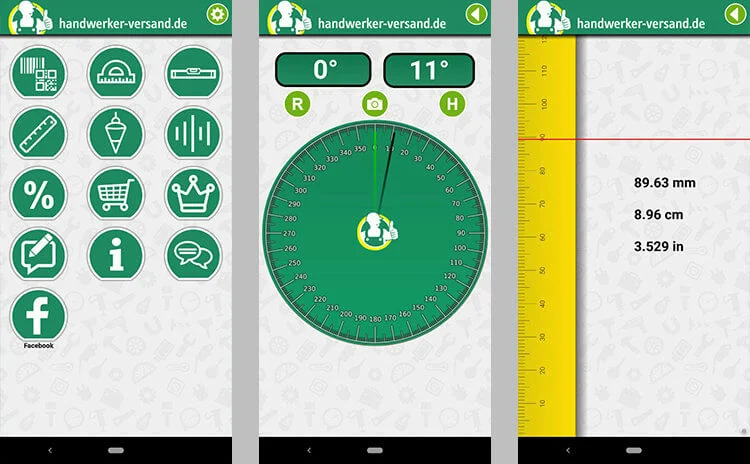
If you don’t need that kind of pro-focused productivity and just want the most essential tools right in your smartphone, you might want to take a look at the Toolbox app. It includes useful features such as a barcode scanner, protractor, level, ruler, plumb bob and sound volume meter. Using the application is quite simple, but there is also a help section where you can find answers and tips.
DIY 4 Beginners – all over again
If you are just starting to do something on your own, you will face some difficulties. This is completely normal and everyone who is faced with something new for himself, for some time does not understand what is happening around him at all.
If you find yourself in this situation, the DIY 4 Beginners app will do just fine. In the settings, you can choose one of 17 languages. In addition to standard features such as a converter calculator and a gyroscope, there are other useful things that can make your life easier.
In the application you can find useful articles on various construction and repair topics. From them you will learn how to do something better, and how not to do something. There are a lot of these articles and almost all of them are made with photographs , having studied which, you will learn much more about the topic of interest.
Room Planner – convenient home layout
To really feel comfortable at home, you need to understand how you want to do everything there. For example, the color of walls, floors, windows, and in general, you need a complete idea of how the room will look after the work is completed. This is the main purpose of the Room Planner app. True, you will not be able to create a floor plan with drawing accuracy – there will still be some assumptions, but it will still be much clearer than a pencil drawing on paper.
The plan adjustment mode provides for zooming in and out, changing the location of doors and windows, and some other things. You can also fill in the sketches with furniture (eg IKEA furniture) of your choice. If you do not like IKEA, anyway, placing a wardrobe and chair even from this store will make it much clearer how the room will look even with other pieces of furniture.
All the apps in this article are free , but Room Planner, for example, has in-app purchases. Here you already need to understand what you need, but with these applications, repair or construction can be at least a little, but easier. After all, those who have encountered repairs are well aware of what it is and how they want to simplify this process at least a little.
-
Pokerstars vs 888

PokerStars and 888poker are both online poker rooms that offer a variety of games and tournaments for players of all skill levels. Both are considered to be among the largest and most popular online poker sites in the world.
PokerStars is known for its high traffic, wide variety of games and tournaments, and its excellent software. It is considered to be the largest online poker site in the world, and is available in a variety of languages.
888poker is also a large and well-established online poker site, with a strong reputation for its game selection and promotions. 888poker is available in multiple languages and has a good reputation among players for providing a smooth and enjoyable playing experience.
Both PokerStars and 888poker offer a variety of games and stakes, including Texas Hold’em, Omaha, and Seven-Card Stud, as well as a range of tournament formats, including multi-table tournaments, sit-and-goes, and satellite tournaments. In terms of traffic and player base, PokerStars is known to have a much higher traffic than 888Poker, but 888Poker’s player-base is considered to be “softer” meaning the level of competition is not as fierce as in PokerStars.
Casino at Pokerstars
PokerStars is primarily known as an online poker site, but it also offers a variety of casino games to its players. These include a range of slot games, as well as table games like blackjack, roulette, and baccarat.
PokerStars Casino is available through the same platform as their poker room, and players can use the same account to access both. The casino games are provided by a variety of different software providers, which ensures that the games on offer are diverse and of high quality.
Some of the games that are available at PokerStars Casino include popular slot titles like Gonzo’s Quest, Starburst, and Mega Moolah, as well as a range of blackjack and roulette games, including live dealer versions of these games.
In addition, PokerStars Casino also offers a selection of other casino games such as video poker, baccarat, craps and more.
Players at PokerStars Casino can also take part in a variety of promotions and bonuses, similar to those offered to poker players, which can be useful to build a bankroll or try out new games without risking as much.
It’s important to note that PokerStars Casino is available in regulated markets where online gambling is legal, and offerings and regulations may vary by region.
Casino at 888
Like PokerStars, 888poker also offers a variety of casino games in addition to its online poker offering. Players can access the casino games through the 888poker website using the same account that they use for the poker room.
888Casino offers a wide range of casino games, including slots, table games, video poker and live dealer games, among others. The casino games are provided by a variety of different software providers, which ensures that the games on offer are diverse and of high quality.
Some of the popular slot games at 888Casino include Gonzo’s Quest, Starburst, Mega Moolah and many more, as well as classic table games like blackjack, roulette, and baccarat. 888Casino also offers many variations of those table games like American, European and French roulette, Blackjack Classic, High stakes blackjack and more.
In addition to these, 888Casino also offers a selection of other games such as craps, bingo, scratch cards and more. 888Casino also offers a variety of promotions and bonuses, which can be useful for building a bankroll or trying out new games.
Like PokerStars, 888Casino is available in regulated markets where online gambling is legal, and offerings and regulations may vary by region.
-
Upwork vs Fiverr: Which is the best place to sell your services?

Both Upwork and Fiverr are popular online marketplaces that allow freelancers to sell their services. Both platforms offer a wide variety of services, and they both have their own strengths and weaknesses.
Upwork is generally considered to be more suited to longer-term, higher-paying projects and clients. It tends to attract more professional freelancers, and clients are often looking for specialized skills and expertise. Upwork also offers a range of features that make it easy for freelancers and clients to communicate, collaborate, and manage projects effectively.
Fiverr, on the other hand, is geared more towards short-term, lower-paying projects and clients. The platform is known for its “gig” system, where freelancers offer a specific service or task at a fixed price. This makes it easy for clients to find and hire freelancers quickly, without having to go through a long hiring process. Fiverr also has a more laid-back, casual atmosphere and tends to attract a more diverse range of freelancers and clients.
Ultimately, the choice between Upwork and Fiverr will depend on your skills, experience, and the types of projects and clients you are looking for. Both platforms can be a great way to find work as a freelancer, and many successful freelancers use both platforms to expand their client base and increase their income.
In summary, the choice between Upwork and Fiverr will depend on the type of projects you are looking for, the level of professionalism you want to work with and your own skills. Both platforms have their own strengths and weaknesses and it’s best to evaluate your own needs and decide which one would be a better fit for you, based on your skills and experience, the types of projects you want to work on, and the clients you want to work with. It’s also worth considering other factors such as the fees charged by each platform, the tools and features available, and the level of support offered. Some freelancers also find it useful to test the waters with both platforms and see which one generates more leads or better clients for them.
-
Can you run Photoshop on a Chromebook?

It depends on the specific Chromebook model and its capabilities. Some newer Chromebooks are able to run Android apps, which includes some versions of Photoshop, however performance and compatibility is not guaranteed.
Another way to use Photoshop on a Chromebook is by using a remote desktop application to access a Windows or Mac computer where Photoshop is installed, but that would require an internet connection and additional setup.
A more reliable alternative would be use a cloud-based alternative like Adobe Photoshop Express which can work entirely on the web.
You can get Adobe apps on your Chromebook
Adobe offers a number of its apps, including Photoshop, as Android apps that can be downloaded and installed on compatible Chromebooks. These apps can be found in the Google Play Store, which is available on most recent Chromebooks. It’s important to note that not all Chromebooks are capable of running Android apps, so it’s best to check the specific model to see if it’s compatible.
Keep in mind that even with the Android app on chromeOS, the performance and features may not be the same as running the native desktop app.
As a reminder, another alternative is using cloud-based app such as Adobe Photoshop Express which can work entirely on the web.
Why you should check out Pixlr on your Chromebook
Pixlr is a free, cloud-based photo editing tool that is available online and as a mobile app. It offers many of the same features as desktop photo editing software like Photoshop, but can be accessed from any device with an internet connection, including a Chromebook.
Here are a few reasons why Pixlr may be a good option for those using a Chromebook:
- Accessibility: As an online tool, Pixlr can be used on any device with an internet connection, including a Chromebook, without the need to install any additional software.
- Cost-effective: Pixlr is completely free to use, making it a cost-effective alternative to expensive photo editing software like Photoshop.
- User-friendly: Pixlr has a simple, intuitive interface that is easy to navigate, making it a great option for those who may not be familiar with more advanced photo editing software.
- Feature-rich: Pixlr offers a wide range of features for editing photos, including cropping, resizing, color adjustments, and the ability to add text and effects.
- Collaboration: Pixlr allows you to collaborate with others in real-time on the same image, making it a great option for group projects and teamwork.
It’s worth to try Pixlr out as an alternative to Photoshop on your Chromebook, it can be a great option for basic to intermediate photo editing tasks.
-
Android. 5 reasons why I like pure Android.

Android users are constantly arguing about which operating system shell is better. Sometimes you can even find a separation of preference between the two skin types at the level of separation between iOS and Android. In such cases, people are simply not ready to accept someone else’s position and very actively resist the opinion of another, although in general there are almost no big differences between shells from different manufacturers. But pure Android is very different from them, which I like much more than almost any shell. Today I want to share five reasons why I prefer pure or bare Android to all other green robot options.
Content
- Android updates
- Unnecessary programs on the phone
- Working with Google services
- Increasing the speed of your smartphone
- Familiar interface
Android updates
When manufacturers take on the task of creating their skins, they have a much harder time when it comes to updates. You must first adapt the shell to the new version of Android and only then roll out updates for your users’ smartphones.
Carrying out these works sometimes becomes so complicated that the manufacturer simply “scores” on them and does nothing to ensure that smartphones, which were not sold very much, have up-to-date software. Even security updates are sometimes delayed and users simply don’t get them on time.
Some manufacturers even speculate on this so that people buy new models. To do this, it is enough to show a new smartphone that will be better in some way, and it will also have new software features that could be added to old models through a software update, but no one needs this.
Unnecessary programs on the phone
Many manufacturers … Why are there many? Everybody! They love stuffing their shell with all sorts of unnecessary software. When they say that they have their own editors for everything, as well as applications for entertainment, it looks beautiful, but in reality it is much easier to use services from Google or recognized world studios.

And many more like to install partner apps that do not benefit anyone at all, except for the phone manufacturer, who received money or profitable partnerships for this . The worst thing is that not all of these applications can be removed, although sometimes you really want to.
My “favorite” of these applications are branded browsers that the devil knows who transfers user data. And okay, only if to offer targeted advertising – Google also uses this – but often the data goes to no one knows where. Recently , Xiaomi was caught doing this .
On smartphones with pure Android, none of this. Sometimes manufacturers can install a couple of applications, but this does not load the phone’s memory and the user’s mind. You can put up with this and coexist in one reality.
Working with Google services
And sometimes some shells are not able to work with part or in rare cases with all Google services. In this case, you have to go around workarounds and try to return the functionality you are entitled to by Android ownership.
This will be especially true for those users who are used to the same applications on a smartphone and another device, be it a PC, tablet or another smartphone. This applies to all stock Android devices, including devices released under the Android One program.
Increasing the speed of your smartphone
An important component of pure Android is its speed. Even on an inexpensive weak smartphone, it will work quite smoothly, unlike shells, which can sometimes produce friezes on flagships. Now it has already become a rarity, but sometimes even performance does not help to fix the situation .
This is due to the fact that Android is quite well optimized, and shells can be overloaded with graphic elements, services, or simply not be developed enough. As a result: lack of RAM, processor overload and slow applications.
Familiar interface
What I’ve always appreciated about iOS is that when you switch from one phone to another, you get new features, but the main interface has a clear consistency.

So it is in pure Android. The main style changes from version to version and at the same time retains its idea. And most importantly, the whole system looks very monolithic. Everything in it is collected and adjusted to each other. There is no such thing that one menu is made in the corporate style of the manufacturer, and the other is either forgotten or scored , but as a result, everything looks very different. This is especially true of the phone menu and applications.
And it’s also very infuriating when part of the interface is made in the corporate flat style, and part is almost in skeuomorphism. Someone gets used to such sloppiness, but it only starts to piss me off more and more every time.
-
Telegram. How to view a sticker before sending and other handy Telegram gestures

Telegram. When he first appeared, few people took it seriously, except for enthusiasts and geeks. Now it has grown a lot and has become one of the best instant messengers in the world. Of course, it is still far from WhatsApp, but it has gone beyond a simple way to exchange messages. I’m not even talking about some complex encryption systems and the behavior of Pavel Durov, who periodically says that he will not give anyone access, but then the moment comes and he gives this access to other countries. Now we are not talking about this, but about the fact that Telegram has convenient, but somewhat non-obvious things that you can and should use to make your life easier and make the experience of using the service more enjoyable.
Content
- 1 Telegram control gestures
- 1.1 How to read a message so that the interlocutor does not know about it
- 1.2 Quickly close a chat in Telegram
- 1.3 How to quickly reply to a message in Telegram
- 1.4 How to view a Telegram sticker before sending
- 1.5 How to record long voice messages in Telegram
- 2 Is it worth using Telegram
Telegram control gestures
It is gestures that have now become the main control of many applications and the operating system as a whole. This is very logical and native. In some ways, this can be compared with swipes for scrolling, when we kind of send the interface to the side. With gestures, everything is about the same. It is necessary to close it – threw it away from itself, it is necessary to go back – grabbed it with a swipe from the edge and returned.
And swipes are also convenient because they work on the entire screen area and you don’t have to hit small buttons.
A striking example of the convenience of swipes is Telegram. With such a rich set of features included with Telegram, it’s easy to miss some of them or forget they even exist. So let’s take a look at some of the most useful gestures that are hidden in Telegram and see why we should use them.
How to read a message so that the interlocutor does not know about it
Sometimes I want to read a message but don’t have time to reply to it right away. At these moments, I want to read the message, but so that no one knows that I did it. There are people who get offended if you read his message, do not respond within 12 seconds after that. Preferably expanded.
Telegram shows you when you’ve read a message , and this could potentially lead to a nasty situation. There is one trick for this. A long press on the image next to a chat name brings up a preview, allowing you to read the last few messages in full without marking them as read. If you still want to reply right away, just swipe up . This will open the full conversation.

Quickly close a chat in Telegram
To quickly close a chat and return to the list of those that you had before, there is one simple gesture that is often used in the system, be it Android or iOS. To do this, simply swipe your finger across the screen from left to right . This will minimize the chat and you will have access to the general list of chats. Everything is very simple.
How to quickly reply to a message in Telegram
This gesture is probably one of the most convenient and it allows you to quickly reply to a message. No need to click on it, hold it, then choose “answer” and spend precious seconds of your life on it.
Just swipe left from the message and you can reply to it. The original message will appear at the bottom above the typing bar. In general, everything is as usual, only with a new control gesture. So you can quickly and conveniently answer in large chat rooms, where various topics are constantly being discussed.
How to view a Telegram sticker before sending
It has always been a problem for me to figure out which sticker I am going to send now. Sometimes you choose the right emoji and they give you options for stickers, you choose a good one, but when it is sent, it becomes large and animated, it turns out that it has a hidden meaning and becomes somehow uncomfortable.
There is also a gesture to solve this problem. You just need to click on one of the proposed stickers and hold your finger on it . It will open in a larger format and be animated. So you can understand whether it is worth sending it. If, without releasing your finger, move it around the screen, you can see other stickers from those that are open in thumbnails for preview. This is very convenient, given the huge number of stickers in Telegram.

How to record long voice messages in Telegram
In Telegram, as in other messengers, it is possible to send voice messages. In general, I condemn this and do not understand why, when communicating with a person by voice messages, you can’t just call (especially since you can call through Telegram itself). Such communication takes twice as much time and then you cannot find what you discussed in the correspondence.
I see only two situations where you can and should use voice messages. In the first case, it will be a big message that takes a long time to type and you send it at night so that the interlocutor can listen to it in the morning . In the second case, this is again a long message in the chat, when it is impossible to explain the idea in text, but you won’t call each chat participant either. For example, we sometimes send voice “drafts” like this in editorial chats.
In order to record a message, you need to click on the microphone icon and speak like a walkie-talkie. However, if you need to record a long message, then keeping the microphone “pressed” does not make sense. Just swipe up and the recording will continue until you stop it .
Is it worth using Telegram
I think that using Telegram is really convenient and useful. Even because he allegedly encrypts something there and no one has access to it. All this is nonsense and no one needs the correspondence of 99.99999 percent of users who simply flatter themselves by exaggerating their importance.
Telegram should be used only because it is convenient, and everything else is just add-ons. The most pleasant conveniences for me personally are the ability to work on several devices at the same time and the ability to send files without compression. And also those control gestures that I wrote about in this article.
-
Google Chrome will be able to instantly open tabs and not eat RAM

Google Chrome is rightfully one of the most popular, if not the most popular, browser in the world. It has many advantages in terms of convenience, but it also has disadvantages, which are expressed in the exactingness of the system. Everyone knows that Google Chrome will gobble up all the RAM that is and will not choke. For example, when I had an old MacBook Air with two gigs of RAM, it seemed to me that it was about to end its life, it was so hard for him to work with this browser. Even on the current MacBook Pro with 16 GB of RAM, it’s still sometimes easier to choose a different browser. Google understands this and is preparing an update that may not improve the situation, but without unnecessary load on the computer, it will make the browser faster.
Content
- How Google Chrome Works
- How Google will save tabs
- Which Google Chrome tabs will Quick Open work for?
- When will the tab cache feature appear in Google Chrome
How Google Chrome Works
Now Google Chrome works so that when you close a tab, it is instantly unloaded. This is done in order to reduce the load on the system and its RAM. When you realize that you need to open it, you do it and the page essentially reloads. This wastes time, traffic and, again, system resources. Sometimes this can be very significant, especially if you are using a browser somewhere on the road and have an unstable network connection.
As the folks at Chrome Story pointed out a while back , Google Chrome is preparing an experimental update that will address this issue. As a result, opening a closed tab should be almost instantaneous. Well, or at least very fast – much faster than it is happening now.
How Google will save tabs
Instead of clearing the data immediately, Chrome will freeze all information about the page and all its data. For a short time, it will be stored in a special cache. Thanks to this, if you decide to reopen a closed tab within a short period of time, it will open very quickly precisely because it will be saved and it will not have to be reloaded, knowing only the URL .
The development team notes that the acceleration will indeed be significant. If it seems to you that you do not accidentally close tabs and open them again so often, then I hasten to please you that the above benefit of updating is not the only one.
The “reopen tab” feature in a public design document is referred to as the “closed tab cache”. According to the doc, the closed tab cache is based on another experimental, work-in-progress rework of the “BackForwardCache” feature, which saves some of the pages you’ve recently viewed so that Chrome’s back and forward buttons work almost instantly. Now this is a much more significant innovation. At the same time, apparently, the cache will not be stored for long enough to overload the system. After a few seconds or minutes, it will be cleared and you will not notice any extra load on your device.
Which Google Chrome tabs will Quick Open work for?
The developers note that the “reopen tab” feature will work for most recently closed tabs. They are currently actively working on the “BackForwardCache” enhancement for Chrome. This cache will make forward and backward navigation instantaneous. Developers want to reuse the work done there so they can quickly restore recently closed tabs.
The main use case is random clicks, which sometimes happen to everyone. In this case, the return back will not make the user wait and the recovery immediately after the close will be instant. So the developers hope to get a big win in terms of user experience. Having the ability to instantly restore tabs with all their contents, the user will get much more pleasure from working with the browser from Google.
When will the tab cache feature appear in Google Chrome
Unfortunately, it is not yet possible to say that such an update will appear very soon, but it will be. I see no reason to abandon this promising development. Now this is a matter of technology and, having an idea, you just need to implement it, which is what the developers are doing. Most likely, it will be necessary to wait for the appearance of such a function for several months, but it’s worth it. Especially I would like to have a properly working ”BackForwardCache” function .
Someone will say that waiting a couple of seconds is not scary anyway, but imagine a smartphone on which, for example, you are trying to open the settings, and each item opens for 2-3 seconds, and not instantly. Why is it necessary, if it is possible without it? The Internet is already working, as if it were downloaded to our computer, compared to what it was about ten years ago. If there is an opportunity to speed up work with it, it should be done.
Interestingly, the paper also notes that Chrome for Android already has a feature to cache recently closed tabs, providing a convenient mobile browser undo option . These new planned improvements should make the tab opening experience more consistent between Chrome for Android and desktop versions of Chrome.
If you have something to add to the work of Google Chrome, write about it in the comments. Our site is too large to remain unnoticed by serious market players, including Google itself. Perhaps you will throw in an idea that the company’s specialists want to implement in new versions of the software.
-
Google Camera for any phone. How to install?

What is Google known for? Of course, the first thing that almost everyone will remember is a search engine. It is he who brings Google a lot of money and allows us to develop other services, and it is easy for us to navigate the Web. Many will also call Android, because it is the most popular operating system in the world. At the same time, few will remember the company’s achievements in the field of mobile photography. But it is in this area that the company has made huge strides and makes such software for the camera, with which little can be compared. Relatively recently, it became possible to install the Google Camera on third-party smartphones, and not just on the Google Pixel. Now I will tell you how this can be done.
Content
- 1. Google Camera
- 2. What is gcam
- 2.1 What’s New in Gcam 7.4
- 3. How to download and install Google Camera
Google Camera
In favor of the fact that the Google Camera is really cool , says the fact that the Google Pixel, which was originally the carrier of this function, took almost the best photos for its time, having only one camera module, and not several, like other manufacturers . Even shots with background blur were good, where bokeh was achieved exclusively by software without the slightest hint of physics and optics.
Actually, thanks to the ability of Google’s software to process images, the Google Pixel camera is one of the best in the industry. The company has official support for advanced features such as astrophotography and more. Google recently released the Google Camera v7.4 app with several new features and improvements. Among them, we can note the long-awaited 4K recording at 60fps. It took quite a bit of time and now we have the opportunity to install Gcam on other smartphones.
What is gcam
In fact, Gcam is a mod that aims to bring the Google Camera app to multiple smartphones and make all the features work with them. There are several variations of Gcam. Some are more universal and can be installed on several smartphone models at once, while others are made for a specific model. There are several developers working on Gcam and an active community of users using the mod.

Installing Gcam is simple, but first consider if you need this application.
Now the developers have taken it one step further by releasing the latest version of Gcam with all the features that users love this mod so much for.
What’s New in Gcam 7.4
- Quick video resolution change
- Changing setting items
- 24fps video recording
- 4K video recording at 60fps
- Exposure adjustment to adjust brightness and HDR photos
- Improved work with faces
- Enabled support for Qualcomm Snapdragon 710 and 845 processors
How to download and install Google Camera
The developer parrot043 has worked with the Google Camera 7.3 app and made the first modified version of the Gcam 7.3 APK. The new mod is available for almost every Android smartphone . Although there are some limitations, the main thing is the camera2 API support. Moreover, you need to make sure that your device is running Android 10 . Gcam 7.3 will not work with devices running Android 9.0 or below. Try, of course, it is necessary, but the probability of success is negligible.
To add Gcam to your phone, you first need to download its APK from this link . It should be understood that this is a beta version that may not work correctly or simply not run on your phone. And also remember that you unpack all APKs at your own peril and risk, since only the developer knows what he put into the application code.
Once you download the APK , just unpack it and install the app. It will appear on your home screen or app drawer. You just have to run it, give all the necessary permissions and start using it. It’s that simple. The only thing to remember is that you must have permission to install applications from third-party sources. You will be prompted to give this permission during installation if you do not have it.

The Google camera is best placed on Xiaomi right now.
Before installing, make sure everything is fine with the camera2 API on your smartphone. If you don’t know what it is, just type “Camera 2 API Checker” on Google Play and download the appropriate app to make sure your device supports it.
At the moment it is difficult to say which smartphones exactly support this version of Gcam.
Among those applications that should support the new version of Gcam are:
- Redmi Note 5Pro / 7/8 / 8T
- Wed А3
- We 8
- Mi9Lite (SE) – limited
- Redmi 5 Plus – HDR does not work on the front camera
- LeEco LeMax x820 (829)
- My Note 3
- Redmi Note9s / Pro – video not working
If you have something to add about this and push our readers to install Gcam or vice versa, dissuade them from doing so, write in the comments.
Thank you for attention!

 Tinytunes.app